


Blend: AI Videos Logos Try On
4.6237.00 Reviews
App Specs
- Version
- 3.17.133
- Updated On
- License
- Free
- Downloads
- 1,000,000+
- Developer
- Blendit Studios Pvt Ltd
- Categories
- Photography
- Platform
- Android
Screenshots
 Analysis by AppCompare
I’d treat Blend as a shared creative tool rather than a family photo album: it can help turn a few pictures into a polished-looking post, try out product imagery, or make a first pass at a logo. That makes it useful in a household where several people have small projects, but it also means it’s worth deciding whose photos and drafts are being used before everyone starts tapping around. In my experience, a little coordination makes this kind of app more enjoyable and avoids the awkwardness of mixing someone’s personal images with a shared project.
One device, several creative projects
A realistic use for Blend is a family preparing a small event announcement. One person can choose the photos and decide what the video should say, while another can look over the colors and text before it is shared. For a household side business, the same approach works for a quick product image or an early logo idea: use the app to explore a visual direction, then have the person responsible for the business make the final call. It is a practical way to get from “we need something to post” to a draft people can discuss.
I would keep each project’s purpose clear. A birthday montage, a product photo, and a business logo need different tones, even if the same person is making all three. Before uploading images, I’d pick the ones that fit the intended audience and avoid treating a casual family photo as automatically suitable for a public design. This simple choice matters because Blend’s appeal is speed: it is easy to move straight into creation without stopping to think about where an image may eventually appear.
Set boundaries before sharing a phone
Blend is free to download, with optional in-app purchases priced from around fifty cents to about two hundred and fifty dollars per item. That wide range makes it sensible to keep purchase decisions with the person who manages the device or account, rather than letting a child or guest explore purchase prompts unsupervised. I’d agree in advance on whether the app is being used only for free exploration or whether anyone has permission to spend money. This is a household boundary, not a reason to assume that a particular family-control feature is built into the app.
Account and content boundaries deserve the same attention. If several people use one device, decide whose images are appropriate to select and who gets to approve a finished design. I would also avoid promising that drafts or personal material will stay separate just because different family members take turns using the phone; that depends on how the device and app are being used. When privacy or strict separation is essential, a person’s own device and account habits are a better starting point than a shared creative session.
Coordination makes the results more useful
AI-assisted design can make a first draft quickly, but speed does not replace a shared brief. Before making a logo, agree on the name, the feeling it should convey, and where it will be used. Before building a video, decide who it is for and whether the photos are meant for a private greeting or a public social post. Those few choices help people judge the result instead of getting distracted by whichever template looks exciting at first.
For a small shop or hobby project, I’d use Blend to explore several visual directions, then ask the person who knows the product best to check that the image still represents it honestly. A polished design can create expectations, so a product visual should not suggest details the real item does not have. For a keepsake video, I’d let the person closest to the occasion approve the photo selection and wording. That division of effort makes the app a helpful collaborator without letting its automated styling make the important decisions.
Worth Reading Before You Choose

Flipboard Shows What News Apps Must Do Beyond the Feed

Switching to Android Auto Means Rethinking Your Driving Routine

Google Calendar Makes a Crowded Week Easier to Manage

Ludo King Makes the Most of the Minutes Between Plans

Baby Panda World Brings Quick Play to Modern Phones, but Its Game Library Feels Busy

ESPN’s Live Game View Makes Following Close Games Easier
Age, trust, and realistic expectations
Blend is rated for Everyone, which makes its audience broad, but that rating is not a substitute for an adult’s judgment about a particular child, image, or purchase. I’d guide younger users through choosing photos and reviewing the final result, especially if they plan to post it publicly. The app’s focus on photos, designs, and social content makes those choices part of using it thoughtfully, rather than something to consider only after a project is complete.
Blend is made by Blendit Studios Pvt Ltd. It has an average rating of 4.6 from around seventy-three thousand ratings, and more than a million installs. Those figures suggest that it has found a sizeable audience, but they can’t tell me whether a specific template will fit my project or whether I’ll like every generated result. I’d judge it on the actual draft: does the text read clearly, do the images still look like the real subject, and does the finished piece suit the people who will see it?
The app is free, so trying a small project is a reasonable way to see whether its workflow suits your household. It runs on Android 8.0 or later, and version 3.17.133 is the current release. If you need meticulous control over every layer, a conventional editing app may be a better fit; if you need a fast starting point for a social design, Blend’s guided, AI-assisted approach is more approachable. I’d also keep the original photos so you can return to them if an automated treatment changes a detail you care about.
Ever fancied the idea of creating stunning videos or logos without breaking a sweat? Well, let me introduce you to Blend: AI Videos Logos Try On. It's like having a tiny creative genius in your pocket, ready to help you craft eye-catching content with just a few taps. I’ve been playing around with it, and wow, it’s a game-changer!
Getting Started with Blend
First things first, downloading and setting up the app is a breeze. Just head over to your app store, and within minutes, you’ll be diving into a world of creativity. The interface? Super intuitive. Even if you’re not a tech wizard, you’ll find your way around in no time.
Once inside, you’re greeted with a neat dashboard. It’s like being in a candy store for creatives. Whether you’re looking to design a video for a special occasion or whip up a snazzy logo for your new business, Blend has got you covered. The app uses AI to streamline the creation process, which is both fascinating and incredibly efficient.
Creating Videos with a Personal Touch
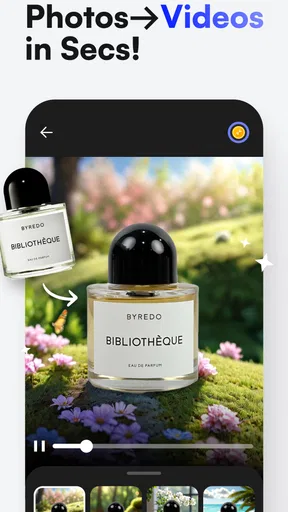
Now, let’s talk videos. With Blend, I could pick from a plethora of templates. Whether you’re aiming for something sleek and modern or fun and quirky, there’s a template for that. The AI does the heavy lifting, suggesting edits and styles based on the content you upload. I uploaded a few of my favorite pics, and voilà, a stunning video montage was ready in minutes.
The editing tools are pretty nifty too. You can tweak transitions, add text overlays, and even insert some funky music tracks. Want to add a personal touch? No problem! The app lets you adjust colors, fonts, and even the pace of the video. It’s like having a mini editing studio in your hands.
One useful habit is to choose the photos before opening the editor. I find that a tighter selection gives an automated montage a clearer story, while a large mixed folder can make the result feel less intentional. For an everyday recap, I’d choose images that show a beginning, a highlight, and a closing moment, then check the sequence and text before sharing. That small bit of planning can matter more than trying every available style.
I would also treat the first video as a draft, not a finished keepsake. Look for cropped faces, text placed over a busy part of an image, and pacing that feels too quick for the occasion. If the finished piece is meant for a family group, a lively template may be fine; for a quieter tribute or a message for older relatives, a simpler look may communicate better. The app can speed up assembly, but the final review is still yours.
Product visuals and practical comparisons
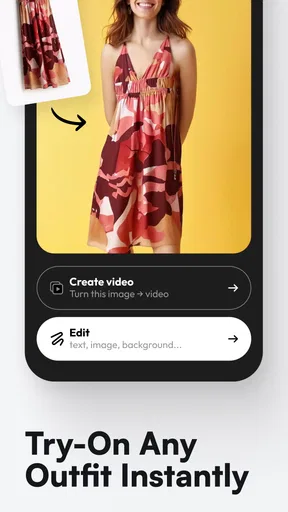
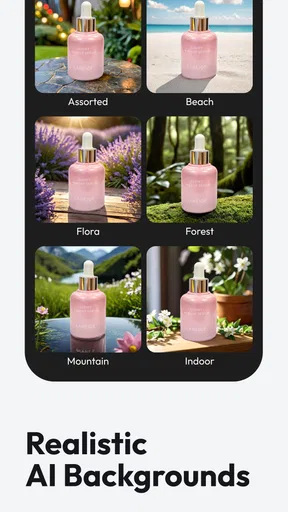
Blend’s product-photo and virtual-model angle makes it different from a basic gallery editor. A usual photo app is often better when I only want to crop, brighten, or make a straightforward correction to a real picture. Blend makes more sense when the goal is to create a designed presentation or explore how a product might look in a styled image. For a small seller preparing a social post, that can be a useful starting point, but I would compare the result with the actual item before publishing so the styling does not imply a color, fit, or feature that is not true.
That distinction also helps decide when not to use it. If I need exact product photography for a listing where buyers must see the real item faithfully, a conventional camera workflow and careful editing are safer. If I need a quick concept image, a social graphic, or an early visual direction, Blend is more convenient than starting from a blank canvas in a professional design tool. The trade-off is control: a dedicated editor generally gives a more deliberate, layer-by-layer process, while Blend’s guided approach gets me to a presentable draft with less setup.
Crafting Logos Like a Pro
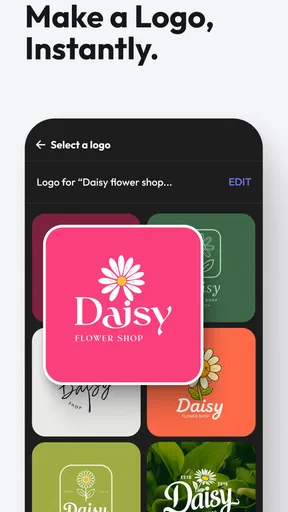
Moving on to logos, this is where the AI really shines. I’m no graphic designer, but with Blend, I felt like one. The app provides a wide array of design elements and fonts. You can either start from scratch or use one of their professionally designed templates. I opted for a template, and within moments, I had a sleek logo ready to go.
What’s cool is the app’s ability to customize. You can adjust every little detail, from the color palette to the font style. The AI offers suggestions based on current design trends, so your logo is not just unique but also stylish and up-to-date. This feature is a real timesaver, especially if you’re juggling multiple projects.
For a logo, I would make one decision before browsing: where will it appear first? A design that looks appealing in a large preview may become hard to read when reduced for a profile image or placed beside small text. I’d test the name at a compact size and check that the main shape remains recognizable without relying on fine decorative details. That is an easy reality check before treating a quick concept as a finished identity.
I see the logo tools as most useful for brainstorming, personal projects, and early-stage businesses that need a visual starting point. If the mark will become central to packaging or long-term branding, I’d ask for a more deliberate design process and check that it is distinct enough for the intended use. Blend can help me explore a direction, but choosing a template and adjusting its details is not the same as resolving every branding decision.
Why Blend Stands Out
So, what makes Blend a must-have app? For starters, it’s the seamless integration of AI with user-friendly tools. The app is constantly updated with new templates and features, ensuring you’re always ahead of the creative curve. Plus, the community feedback loop means any bugs or issues are quickly addressed, making the user experience smooth and enjoyable.
Another standout feature is the export quality. Whether you’re saving a high-definition video or a crisp logo, the app ensures your creations look professional. You can easily share your work directly from the app to social media platforms or save them to your device.
When I’m making something for a group, I’d separate creative input from final approval. One person can assemble a first pass, then the people represented in the photos can check the selection, wording, and tone before it goes out. That is particularly helpful when a design includes names, faces, or an event detail that someone may not want shared widely. A quick preview on the intended screen also catches tiny text and awkward crops that can be easy to miss while editing.
Blend is a photography app from Blendit Studios Pvt Ltd, and its appeal is that it brings image-making and design tasks into a more guided workflow than a traditional editor. It is a strong fit for casual creators, social-media users, and people who want to test an idea without learning a complex design program. It is less compelling for anyone who needs precise professional control or a guaranteed match between an AI-styled result and a real product. I’d use it for the draft and review carefully before treating that draft as authoritative.
Final Thoughts
If you’re on the hunt for an app that combines ease of use with powerful creative tools, Blend: AI Videos Logos Try On is definitely worth checking out. It’s perfect for anyone, from social media enthusiasts to budding entrepreneurs looking to make their mark. Give it a try, and let your creative juices flow!
My household verdict is that Blend works best when one person takes responsibility for the project and others contribute clear, limited feedback. It can turn a blank-page moment into something people can react to, which is often the hardest part of making a post or a simple logo. I would not install it expecting a substitute for careful editing, a professional brand process, or a shared family archive. But for a quick montage, a first product visual, or a logo concept that needs discussion, it offers an approachable place to begin.
Pros
- User-friendly interface for easy navigation.
- Wide variety of creative video templates.
- AI-driven features enhance editing precision.
- Supports high-resolution video exports.
- Seamless integration with social media platforms.
Cons
- Limited free features without subscription.
- Occasional lags on older devices.
- In-app purchases can be expensive.
- Requires internet for most functionalities.
- Limited customization for advanced users.
FAQs for Blend: AI Videos Logos Try On
What is the main purpose of Blend: AI Videos Logos Try On?
Blend: AI Videos Logos Try On is designed to help users create stunning videos and logos using advanced AI technology. The app offers a range of tools that allow you to customize and try on different styles, making it perfect for both personal and professional use. It aims to simplify the creative process with intuitive features.
Is Blend: AI Videos Logos Try On user-friendly for beginners?
Yes, Blend is very user-friendly and caters to beginners with its intuitive interface and easy-to-follow tutorials. The app guides you through the process of creating videos and logos step-by-step, making it accessible even if you have no prior design experience. It’s designed to be as straightforward as possible.
What platforms is Blend: AI Videos Logos Try On available on?
Blend is available for both Android and iOS devices. You can download it from the Google Play Store or the Apple App Store, ensuring that you can access its features regardless of your device. It is optimized to run smoothly on all compatible smartphones and tablets.
Does Blend: AI Videos Logos Try On require an internet connection to function?
While some features of Blend can be used offline, an internet connection is needed to access the full range of AI-powered tools and updates. Online access ensures that you can use the latest features and receive updates that enhance the app's functionality and performance.
Are there any costs associated with using Blend: AI Videos Logos Try On?
Blend offers both free and premium features. The basic version is free to download and use, providing a selection of tools. However, to unlock advanced features and remove ads, users can opt for in-app purchases or a subscription model. This allows users to choose the best option for their needs and budget.


